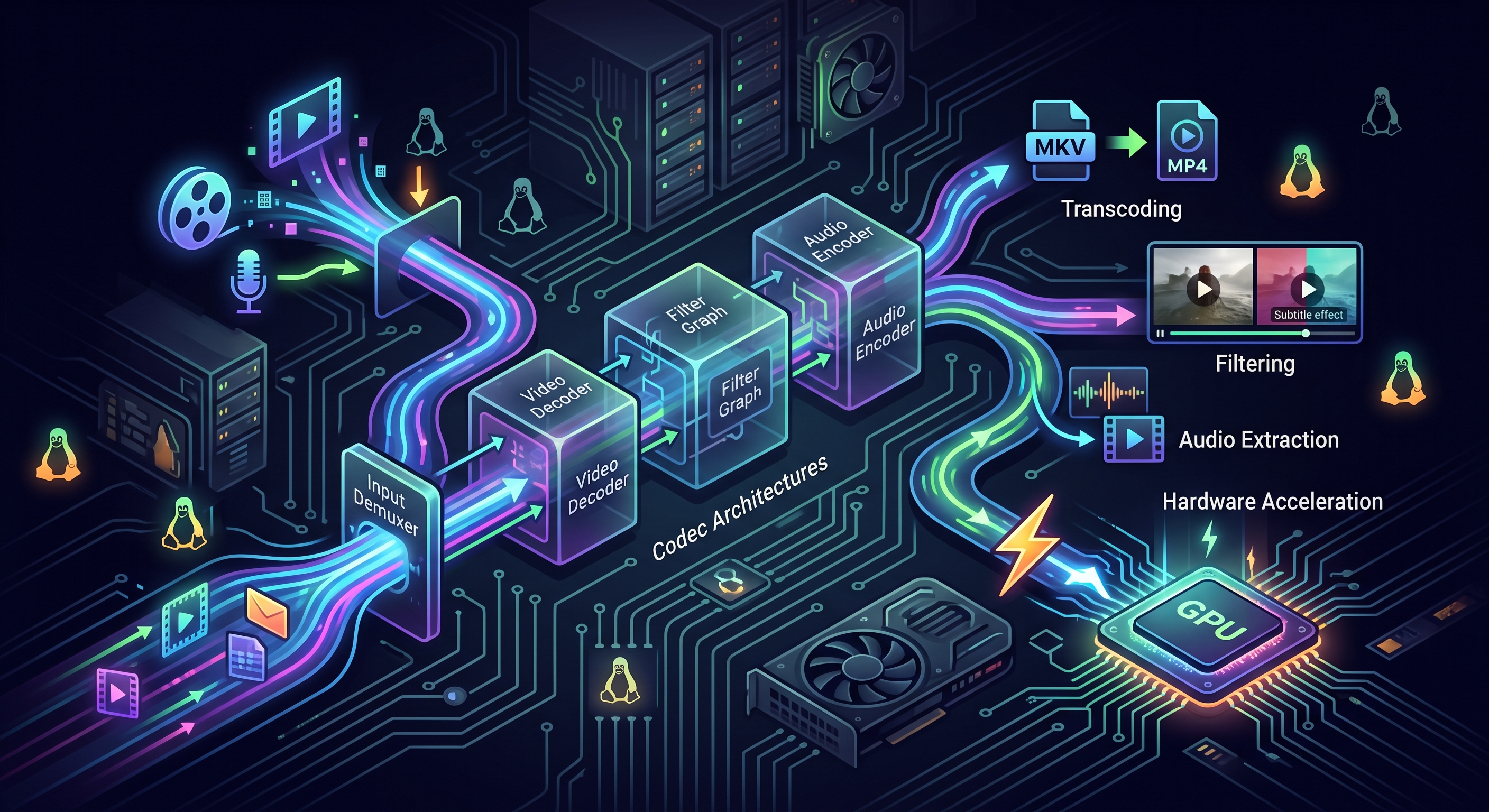
Whether you are compressing phone footage to share on Discord, repairing out-of-sync audio, extracting MP3s from webinars, or architecting enterprise cloud encoding pipelines, FFmpeg is the universal engine behind modern digital media.
Written in low-level C and assembly for ruthless execution speed, FFmpeg powers VLC, YouTube, Netflix, Discord, and countless video editors. Yet for newcomers and intermediate developers alike, its command-line interface can feel arcane: endless flags, obscure acronyms (YUV420p, CRF, demuxer), and dizzying syntax.
This guide bridges that gap. We break down the fundamentals in plain English for all skill levels, explore what codecs and encoders actually do, answer whether video quality can genuinely be improved, and give you battle-tested command recipes you can use right away.
0. The Fundamentals: Containers vs. Codecs
Before touching a terminal, it is vital to distinguish between a Container and a Codec. Confusing the two is the number one source of beginner errors.
+-----------------------------------------------------------------------+
| Container File: video.mp4                                             |
|                                                                       |
|   +--------------------------+    +---------------------------------+ |
|   | Video Track              |    | Audio Track                     | |
|   | Encoded with H.264/AVC   |    | Encoded with AAC or Opus        | |
|   +--------------------------+    +---------------------------------+ |
|                                                                       |
|   +--------------------------+    +---------------------------------+ |
|   | Subtitles (.srt / ass)   |    | Metadata (Chapters, Cover Art)  | |
|   +--------------------------+    +---------------------------------+ |
+-----------------------------------------------------------------------+
The Container (The Envelope)
- What it is: The file format identified by extensions like
.mp4,.mkv,.avi,.mov, or.webm. - Its job: It is simply a wrapper—a digital box that bundles together video tracks, audio streams, subtitle files, and synchronization timestamps into a single file.
- Analogy: Think of a container as a cardboard shipping box. The box itself does not dictate what kind of goods are packed inside.
The Codec (The Language)
- What it is: Short for Coder-Decoder (e.g., H.264, HEVC/H.265, AV1, VP9, AAC, MP3, FLAC).
- Its job: It defines the algorithmic compression standard used to shrink gargantuan raw camera sensors and audio waveforms into reasonable file sizes.
- Analogy: If the container is the cardboard box, the codec is the language in which the letters inside are written.
1. Encoders vs. Decoders: How Video Actually Moves
To understand what FFmpeg does, you need to understand what an encoder and a decoder actually do:
[ Compressed File ] ──(Decoder)──> [ Raw Pixels / Audio Samples ] ──(Encoder)──> [ Compressed Output ]
The Decoder
Raw digital video is massive. A standard 1080p uncompressed 60 FPS video requires roughly 3 Gbps of bandwidth—a 2-hour movie would devour more than 2.5 Terabytes of disk space! Because storage and networks cannot handle raw pixels, video files are stored compressed.
- When you open a video file, the decoder takes those compressed mathematical instructions and unpacks them back into raw uncompressed pixel frames (RGB or YUV) in memory.
- Decoding is mathematically lighter than encoding, which is why your phone can easily play back 4K video without draining its battery in 10 minutes.
The Encoder
When you export, record, or convert a video, the encoder inspects those millions of raw uncompressed pixel frames and applies sophisticated mathematics (discrete cosine transforms, motion vector estimation, inter-frame prediction) to compress them back down.
- Encoding is computationally brutal: The encoder constantly searches past and future frames to store only the pixels that changed (e.g., a person walking across a static background).
- In FFmpeg, software encoders like
libx264(H.264) orlibsvtav1(AV1) use your CPU to calculate this compression. Hardware encoders likeh264_nvencuse dedicated silicon circuits inside your graphics card.
The FFmpeg Processing Pipeline
Internally, every non-copy FFmpeg command executes this 5-stage pipeline:
       [ Input File ]
             │
         (demuxer)       libavformat extracts raw packets from container
             │
             ▼
     [ Encoded Packets ]
             │
         (decoder)       libavcodec decompresses packets into frames
             │
             ▼
       [ Raw Frames ] ───► [ Filters (libavfilter) ] (Resize, Crop, EQ, FPS)
                                      │
                                      ▼
                                [ Raw Frames ]
                                      │
                                  (encoder)       libavcodec compresses raw frames
                                      │
                                      ▼
                             [ Encoded Packets ]
                                      │
                                   (muxer)        libavformat packages into container
                                      │
                                      ▼
                               [ Output File ]
Key Under-the-Hood Libraries
libavcodec: The heart of FFmpeg, containing hundreds of audio/video encoders and decoders.libavformat: Manages demuxing inputs and muxing outputs across container types.libavfilter: The modular graph engine applying visual and acoustic transformations.libswscale&libswresample: Highly optimized color-space conversion (YUV420p to RGB), frame scaling algorithms (Lanczos, Bicubic), and audio sample resampling.libavutil: Foundational utility library with memory helpers, mathematical functions, and string parsers.
2. Can Video Quality Actually Be Improved?
One of the most frequent questions from video newcomers is:
“Can I use FFmpeg to take a blurry 480p video and make it crisp 4K?”
The short answer is No—with some important caveats.
1. The Information Theory Limit (Generational Loss)
Lossy compression (like JPEG for photos or H.264 for videos) permanently throws away image data to save space. Once discarded, that data is gone forever.
- Re-encoding a video with higher bitrates or larger dimensions cannot invent detail out of thin air.
- In fact, running an already compressed video through a normal re-encode causes a tiny amount of generational loss (similar to photocopying a photocopy).
2. What FFmpeg Can Do to Enhance Perceived Quality
While you cannot magically recover lost physical camera detail without generative AI upscalers, FFmpeg offers powerful filters that significantly boost perceptual quality:
- Sharpening & Contrast: Highlighting soft edges with unsharp masks (
unsharp). - Denoising & De-graining: Removing sensor grain or analog hum (
nlmeans,hqdn3d) which allows subsequent encoders to allocate bits to real detail rather than random noise. - Deinterlacing: Converting jagged comb-like lines from old DVD/camcorder video into smooth progressive frames (
yadif/bwdif). - Color Balance & EQ: Correcting dark, washed-out shadows or fixing white balance.
- High-Quality Upscaling: Upscaling using algorithms like Lanczos (
scale=1920:1080:flags=lanczos) rather than default bilinear interpolation, avoiding excessive blurriness on modern 4K monitors.
3. Installation on Linux
Ubuntu / Debian
sudo apt update
sudo apt install ffmpeg
Arch Linux
sudo pacman -S ffmpeg
Fedora / RHEL
sudo dnf install ffmpeg ffmpeg-free
Verify Supported Encoders & Accelerators
# Print installed version and build flags
ffmpeg -version

# List all available video encoders
ffmpeg -encoders | grep -E "libx264|libx265|libvpx|svtav1"

# Check available hardware acceleration methods
ffmpeg -hwaccels
4. The Anatomy of an FFmpeg Command
Every FFmpeg command follows a strict positional logic:
ffmpeg [global_options] [input_options] -i input.ext [output_options] output.ext
ffmpeg -y -ss 00:01:00 -i input.mp4 -t 30 -c:v libx264 -crf 22 -c:a copy output.mp4
  │     │      │           │         │     │         │      │          │
  │     │      │           │         │     │         │      │          └─ Output file
  │     │      │           │         │     │         │      └─ Audio: Copy stream without re-encode
  │     │      │           │         │     │         └─ Quality: Constant Rate Factor 22
  │     │      │           │         │     └─ Video Codec: Use x264 encoder
  │     │      │           │         └─ Duration: 30 seconds
  │     │      │           └─ Input file
  │     │      └─ Input seek: Jump to 1m mark before decoding (fast)
  │     └─ Global: Overwrite output file without asking
  └─ Binary executable
The Golden Rule: Flags placed before
-iconfigure how the input file is read. Flags placed after-iconfigure how the output stream is encoded and written.
5. Practical Command Recipes
1. Instant Stream Copying (Zero Re-encoding, Zero Quality Loss)
If you just want to switch containers (e.g., from .mkv or .mov to web-friendly .mp4), do not re-encode. Use -c copy:
ffmpeg -i movie.mkv -c copy movie.mp4
- Speed: Finishes in 1-2 seconds (limited only by your drive’s disk speed).
- Quality: 100% identical to the source.
2. Video Compression with Quality Control (CRF)
Instead of guessing fixed bitrates (like 2000k), modern encoders use Constant Rate Factor (-crf). CRF maintains consistent visual fidelity by allocating more bits to action scenes and fewer bits to still shots.
# Everyday Web Video (H.264) - Best compatibility across TVs, phones, browsers
ffmpeg -i raw_input.mov -c:v libx264 -preset slow -crf 22 -c:a aac -b:a 192k output.mp4

# Next-Generation Compression (HEVC / H.265) - ~40% smaller file size at same visual quality
ffmpeg -i input.mp4 -c:v libx265 -preset medium -crf 26 -c:a copy output_hevc.mp4
- CRF Scale (for x264):
0: Completely lossless (huge file size).18: Visually transparent (near imperceptible loss).23: Default sweet spot of size vs. quality.28: Noticeable compression artifacts, but very small file size.
- Presets (
ultrafasttoveryslow):- Controls encoding effort. Slower presets compress video into smaller files without losing quality, but take longer to process.
slowormediumis ideal for production.
- Controls encoding effort. Slower presets compress video into smaller files without losing quality, but take longer to process.
-pix_fmt yuv420p: Essential for H.264! Without this flag, some encoders outputyuv444poryuv422p, which will show a black screen on QuickTime, iPhone, and many web browsers.
3. Extracting and Transcoding Audio
# 1. Lossless Audio Dump: Extract existing audio track without touching it
ffmpeg -i video.mp4 -vn -c:a copy extracted_audio.aac

# 2. Convert to Universal High-Quality MP3 (Variable Bitrate ~190-250 kbps)
ffmpeg -i input.mp4 -vn -c:a libmp3lame -q:a 2 output.mp3

# 3. Modern Web / Discord Audio: Opus (Unbeatable quality at low bitrates)
ffmpeg -i input.mp4 -vn -c:a libopus -b:a 128k output.opus
-vn: Tells FFmpeg to omit (drop) the video stream completely.
4. Precision Video Trimming (Cutting Clips)
# Fast Cut (Keyframe seek - instantaneous, stream copy)
ffmpeg -ss 00:02:15 -i input.mp4 -t 00:00:45 -c copy clip_fast.mp4

# Frame-Accurate Cut (Re-encoded - exact boundary precision)
ffmpeg -ss 00:02:15 -i input.mp4 -to 00:03:00 -c:v libx264 -crf 20 -c:a aac clip_exact.mp4
- Fast cut seeks to the nearest keyframe (I-frame). If you need sub-second accuracy on cuts, re-encode with
-to.
5. Smart Scaling & Aspect Ratio Preservation
# Fixed 720p resolution
ffmpeg -i input.mp4 -vf "scale=1280:720" -c:v libx264 -crf 22 -c:a copy output_720p.mp4

# Proportional Width Scaling (Set width to 1920, automatically calculate height)
ffmpeg -i input.mp4 -vf "scale=1920:-2" -c:v libx264 -crf 22 -c:a copy output_1080p.mp4
Why
-2instead of-1? Standard video codecs require frame dimensions to be divisible by 2 (or 4/8). Specifying-1might calculate an odd height like1079, causing the encoder to throw an error.-2forces FFmpeg to round to the nearest valid even integer.
6. Perceptual Quality Enhancement Recipe
Clean up an old or noisy video before final compression:
ffmpeg -i grainy_old_video.mp4 \
  -vf "hqdn3d=2.0:1.5:3.0:2.5,unsharp=5:5:0.8:5:5:0.0,scale=1920:-2:flags=lanczos" \
  -c:v libx264 -preset slow -crf 20 -pix_fmt yuv420p \
  -c:a aac -b:a 192k enhanced_output.mp4
hqdn3d: High-quality 3D spatio-temporal denoiser to smooth out analog sensor fuzz.unsharp: Subtle unsharp mask to restore edge definition.flags=lanczos: Uses sinc-windowed Lanczos resampling for clean image upscaling.
7. Crisp, Banding-Free GIF Generation
Traditional GIF exports with FFmpeg look pixelated with severe color banding because GIFs are limited to a 256-color palette. We can achieve smooth results with a two-pass palette generator:
# Step 1: Analyze video and generate a dynamic 256-color palette
ffmpeg -i clip.mp4 -vf "fps=15,scale=640:-1:flags=lanczos,palettegen" -y /tmp/palette.png

# Step 2: Render GIF using the generated palette with Floyd-Steinberg dithering
ffmpeg -i clip.mp4 -i /tmp/palette.png -filter_complex "fps=15,scale=640:-1:flags=lanczos[x];[x][1:v]paletteuse" output.gif
rm /tmp/palette.png
6. Stream Mapping (-map): Taking Full Control
Real-world media files frequently contain multiple audio tracks (e.g., Director’s commentary, Japanese, English) and several subtitle streams. If you do not explicitly map streams, FFmpeg defaults to choosing only one track of each type.
First, inspect the streams inside your file:
ffprobe -hide_banner movie.mkv
Output:
Stream #0:0: Video: h264 (High)
Stream #0:1(eng): Audio: aac (5.1 surround)
Stream #0:2(por): Audio: aac (Stereo)
Stream #0:3(eng): Subtitle: subrip
To extract the video and the second (Portuguese) audio track without re-encoding:
ffmpeg -i movie.mkv -map 0:0 -map 0:2 -c copy movie_portuguese.mp4
7. GPU Hardware Acceleration (NVENC & VA-API)
Re-encoding long videos with CPU can max out your machine for hours. Hardware-accelerated encoding offloads work to dedicated ASICs on your GPU, often encoding 5x to 15x faster.
NVIDIA GPUs (NVENC)
# Fast NVENC H.264 encode (constant quality mode via -cq)
ffmpeg -i input.mp4 -c:v h264_nvenc -preset p5 -cq 24 -c:a copy output_nvenc.mp4

# Full End-to-End GPU Pipeline: Hardware decode -> Scale on GPU -> Encode on GPU
ffmpeg -hwaccel cuda -hwaccel_output_format cuda -i input.mp4 \
  -vf "scale_cuda=1920:1080" \
  -c:v hevc_nvenc -preset p6 -cq 26 -c:a copy output_gpu.mp4
Intel / AMD Graphics (VA-API on Linux)
ffmpeg -vaapi_device /dev/dri/renderD128 -i input.mp4 \
  -vf "format=nv12,hwupload" \
  -c:v h264_vaapi -qp 24 output_vaapi.mp4
8. Production Cheat Sheet: The Flags That Matter
| Flag | Purpose | Why It’s Crucial |
|---|---|---|
-c copy | Stream copy | Instant processing; zero generation loss. |
-crf 18-28 | Constant Rate Factor | Dynamic quality allocation; far superior to fixed bitrates. |
-preset <speed> | Encoder effort | Trades encoding time for smaller byte sizes (slow / medium). |
-pix_fmt yuv420p | Pixel format | Guarantees playback on Apple devices and web browsers. |
-movflags +faststart | Web optimization | Moves the moov atom to the file head so streaming starts instantly. |
-af loudnorm | Audio normalization | Automatic two-pass EBU R128 broadcast loudness leveling. |
-threads 0 | Threading | Instructs FFmpeg to utilize optimal CPU cores automatically. |
The Ultimate Production Web Video Command
If you need a single, rock-solid command to compress any video for the web, email, or client delivery:
ffmpeg -i source_master.mov \
  -c:v libx264 -preset slow -crf 22 \
  -pix_fmt yuv420p -movflags +faststart \
  -c:a aac -b:a 192k \
  web_ready.mp4
Summary
FFmpeg is intimidating only when treated as a random generator of command strings. Once you realize it is fundamentally a demux → decode → filter → encode → mux pipeline, every flag becomes logical and predictable.
Keep stream copy (-c copy) for speed, embrace CRF (-crf) for intelligent quality, use perceptual filtering where needed, and let hardware acceleration do the heavy lifting.