1. Introduction
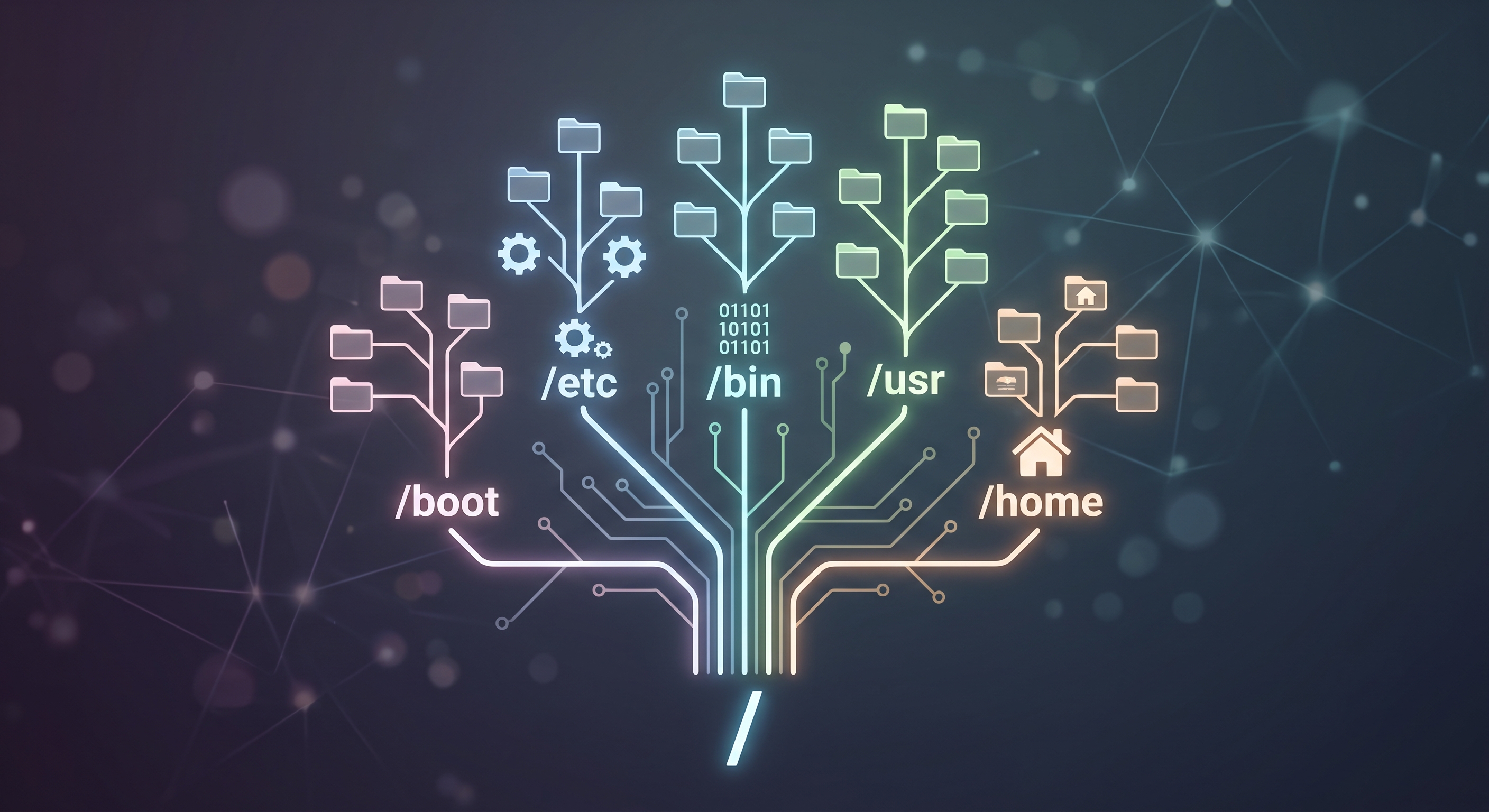
To navigate GNU/Linux effectively, you first need to understand its core design philosophy of “Everything is a file.” Unlike operating systems that assign separate drive letters (like C:\ or D:\) to different storage volumes, Linux uses a single unified, hierarchical filesystem structure. Documents, directories, hardware devices, running processes, and network sockets are all represented as files within this hierarchy. At the very top of this hierarchy is the root directory, represented by a single forward slash (/). Every file, directory, and mounted storage device in Linux branches out from this central root directory like an upside-down tree.
Core Components of GNU/Linux: Kernel, Shell, and User Space
The architecture of a GNU/Linux system is structured into distinct layers that separate system resources from user applications:
- The Kernel: At the core of the system lies the Linux kernel. It directly manages hardware resources—such as CPU scheduling, memory allocation, storage devices, and peripheral hardware—providing a safe and hardware-independent abstraction layer for software.
- User Space: Surrounding the kernel is user space, where all user applications, system services (daemons), and graphical environments run with restricted privileges to ensure stability and security.
- The Shell: Operating inside user space, the shell acts as the command-line interface and interpreter between the user and the kernel. When you type commands into the terminal (such as
lsorcd), the shell translates these high-level human instructions into kernel system calls.
2. The Filesystem Hierarchy
Understanding the purpose of standard directories demystifies the system structure across Linux distributions. These directory locations are defined by the Filesystem Hierarchy Standard (FHS), which ensures that programs know where to find configuration files, logs, and libraries regardless of whether a user is running Ubuntu, Fedora, or Debian.
/boot: Contains files required to boot the operating system, including the Linux kernel and bootloader configurations./etc: Holds system-wide configuration files and startup scripts./bin: Contains essential user command binaries (executables) needed for single-user mode or basic system functionality./sbin: Contains essential system binaries used by the system administrator for maintenance and repair, such asfdiskandfsck./lib: Contains critical shared libraries required by the binaries in /bin and /sbin to function./root: The home directory for the superuser (root account), distinct from the root directory (/)./home: The base directory for user data. Each user has a unique, dedicated subdirectory here (e.g.,/home/username) for storing personal files and configuration settings, which enables multiple users to maintain separate, isolated workspaces./proc: A virtual filesystem providing real-time system and process information generated dynamically by the Linux kernel./usr: Contains user applications, libraries, documentation, and read-only secondary data (Unix Software Resources)./var: Contains variable data files that frequently change during system operation, such as system log files, spool directories, and temporary state data./dev: Device nodes representing hardware components (e.g., hard drives, USB drives, terminal interfaces) as files./tmp: Holds temporary files created by the system and applications, usually cleared upon system reboot.
3. Essential Files
Within the Linux filesystem structure, some essential files serve key roles across system operations:
/boot/vmlinuz-*: The compressed Linux kernel executable./boot/initramfs-*.img: The initial RAM filesystem used during the boot process to load necessary drivers./boot/grub/grub.cfg: The configuration file for the GRUB bootloader, defining menu entries and boot options./boot/System.map-*: A symbol table mapping memory addresses to function names for the kernel./etc/fstab: Filesystem table containing information about disk drives, partitions, and how they should be mounted at boot./etc/passwd: Contains user account information, such as usernames, user IDs, and shell paths./etc/shadow: Stores secure, encrypted password hashes for user accounts./etc/group: Lists group definitions and user group memberships./etc/sudoers: The configuration file controlling which users have administrative privileges and can run commands with sudo./etc/hostname: Defines the system’s network hostname./etc/hosts: A static table used to map hostnames to IP addresses./etc/resolv.conf: Contains DNS configuration for name resolution./etc/network/interfaces: Network interface definitions for Debian-based systems./etc/os-release: Contains operating system identification data./etc/issue: Contains the system identification text displayed before the login prompt./etc/shells: A list of valid login shells available on the system./etc/sysctl.conf: Configuration file for modifying kernel parameters at runtime./etc/login.defs: Configuration for password aging, password complexity, and user ID ranges./etc/security/limits.conf: Configures resource limits for user sessions (e.g., open files, memory)./etc/pam.d/*: Contains Pluggable Authentication Modules (PAM) configuration files./etc/mtab: Displays the currently mounted filesystems.~/.bashrc: A shell script executed whenever a new interactive bash shell is opened, defining user-specific aliases, functions, and environment settings.~/.profile: A startup script executed for login shells to set user environment variables and run commands upon login.~/.bash_history: Stores the history of commands executed in the bash shell./root/.bashrc: The configuration file for the root user’s shell environment./home/username/.ssh/id_rsa: A user’s private SSH key for secure remote authentication./home/username/.ssh/authorized_keys: A list of public keys authorized for SSH remote login./home/username/.ssh/known_hosts: Maintains a database of remote host keys to verify server identity./home/username/.ssh/known_hosts.old: A backup copy of the known_hosts file./home/username/.ssh/config: User-specific configuration for defining SSH host shortcuts and connection settings./var/log/auth.log: Tracks system authentication logs, including login attempts./var/log/syslog: A standard log file containing general system activity messages./var/log/dmesg: Log file containing kernel ring buffer messages./var/log/kern.log: Detailed logs specifically for kernel events./var/log/journal/*: Where systemd stores persistent binary system logs./etc/crontab: System-wide cron jobs for task scheduling./var/spool/cron/: Contains user-specific crontab files for scheduled tasks./sbin/init: The first process started by the kernel, responsible for system initialization (PID 1)./bin/bash: The Bourne Again Shell, a common command-line interpreter./sbin/fdisk: A system utility used to partition disks, typically restricted to the root user./sbin/ip: A modern command for network interface configuration and routing./bin/grep: A powerful utility used for searching text within files./usr/bin/top: A common utility used to display active system processes and resource usage./usr/bin/ps: Command-line utility to display information about active processes./usr/bin/lsof: Utility used to list all open files on the system./usr/bin/netstat: Tool to display network connections and routing tables./usr/sbin/iptables: Administration tool for IPv4 packet filtering and NAT./usr/bin/systemctl: Control utility for the systemd system and service manager./usr/bin/python3: The executable binary for the Python 3 interpreter./usr/local/bin/*: Files for locally installed or custom-compiled software executables./proc/cpuinfo: A virtual file detailing system CPU information./proc/meminfo: A dynamic file providing real-time information about system memory usage./proc/uptime: A file displaying the system’s uptime since last boot./proc/version: A file showing the specific Linux kernel version in use./proc/loadavg: Displays the system load averages over the last 1, 5, and 15 minutes./proc/net/dev: Displays network interface statistics (received/transmitted packets and errors)./dev/null: A special file (null device) that discards all data written to it./dev/sda: A device node representing the first physical SATA or SCSI disk drive./dev/tty: A device file representing the user’s controlling terminal./dev/random: A special file acting as a blocking random number generator./dev/urandom: A special file acting as a non-blocking random number generator./dev/zero: A special character device that provides an unlimited stream of null bytes (zeroes)./lib/x86_64-linux-gnu/libc.so.6: A primary shared library providing standard C functions used by most system binaries./lib/modules/*: Contains loadable kernel modules and drivers./lib64/ld-linux-x86-64.so.2: The dynamic linker/loader required to execute programs that use shared libraries./lib/modules/$(uname -r)/*: Files containing loadable kernel modules for the currently running kernel./etc/skel/*: Contains template files for creating new user home directories./usr/share/man/*: The standard location for manual pages and documentation./tmp/example.tmp: A placeholder representing temporary files created by applications during runtime.
4. Navigating the Filesystem
To move around the filesystem effectively from the command line, use these fundamental utilities:
pwd(Print Working Directory): Displays your current full directory path.ls(List Contents): Lists files and subdirectories. Usingls -lahdisplays detailed permissions, file sizes in human-readable units, ownership, and hidden files (starting with a dot).cd(Change Directory): Changes your working directory (e.g.,cd /var/logorcd ..to go up one level).tree: Displays a visual depth-indented directory tree structure.
Absolute vs. Relative Paths:
- Absolute Path: Specifies a location from the root directory (
/). It always begins with a forward slash (e.g.,cd /home/username/Documents/notes/). - Relative Path: Specifies a location relative to your current directory without starting from / (e.g.,
cd Documents/notesorcd ..). Additionally, the tilde symbol (~) can be used as a shortcut to reference your home directory (e.g.,~/Documents/notes).
5. File & Directory Operations
Managing files and directories from the terminal relies on several fundamental commands:
mkdir: Creates new directories (e.g.,mkdir projects). Usemkdir -pto create parent directories as needed.touch: Creates an empty file or updates the access/modification timestamps of an existing file.cp: Copies files or directories (usingcp -rfor recursive directory copies).mv: Moves or renames files and directories.rm: Removes files. Userm -rto remove directories.
Safety Warning: Running rm -rf forcefully deletes files and directories recursively without confirmation. Because command-line deletions bypass the trash bin, executing this on critical system directories causes permanent data loss. Exercise extreme caution.
Viewing File Contents:
cat: Concatenates and prints the entire contents of a file to stdout.less: Opens files in a scrollable, paginated view for reading large documents or log files easily.head/tail: Outputs the first or last lines of a file (e.g.,tail -n 20 /var/log/syslog).
6. File Permissions & Ownership
In Linux, navigating into a directory or opening a file depends on file permissions. Examining the output of ls -l reveals permission strings such as -rwxr-xr--:
- Permission Breakdown: The 10-character string indicates file type followed by three triplets representing permissions for Owner, Group, and Others. If the first character is
d, it indicates the item is a directory. - Read (
r), Write (w), Execute (x): For directories, the execute permission (x) is required to enter them usingcd. chmod: Modifies read, write, and execute permissions on files or directories.chown: Changes the owner user and group assignment of files or directories.
7. Tips for Efficiency
Boost your workflow and speed up terminal navigation using key command-line shortcuts:
- Tab Completion: Press
Tabto auto-complete file names, directory paths, and commands to avoid manual typing errors. - Command History: Use the up/down arrow keys or run
historyto recall previous commands. - Shell Aliases: Set up shortcuts in your shell configuration (e.g.,
alias ll=’ls -lah’) to streamline complex workflows.
8. Conclusion
Mastering GNU/Linux begins with grasping its foundational concept that “Everything is a file,” creating a uniform model across all system interactions. The Filesystem Hierarchy Standard (FHS) builds upon this model to ensure consistency and predictability across different Linux distributions. By becoming proficient with essential navigation and file management commands like pwd, ls, cd, mkdir, and rm, you gain control over the file system. Finally, understanding file permissions and ownership is critical to maintaining system security and stability, ensuring proper multi-user isolation and resource protection.