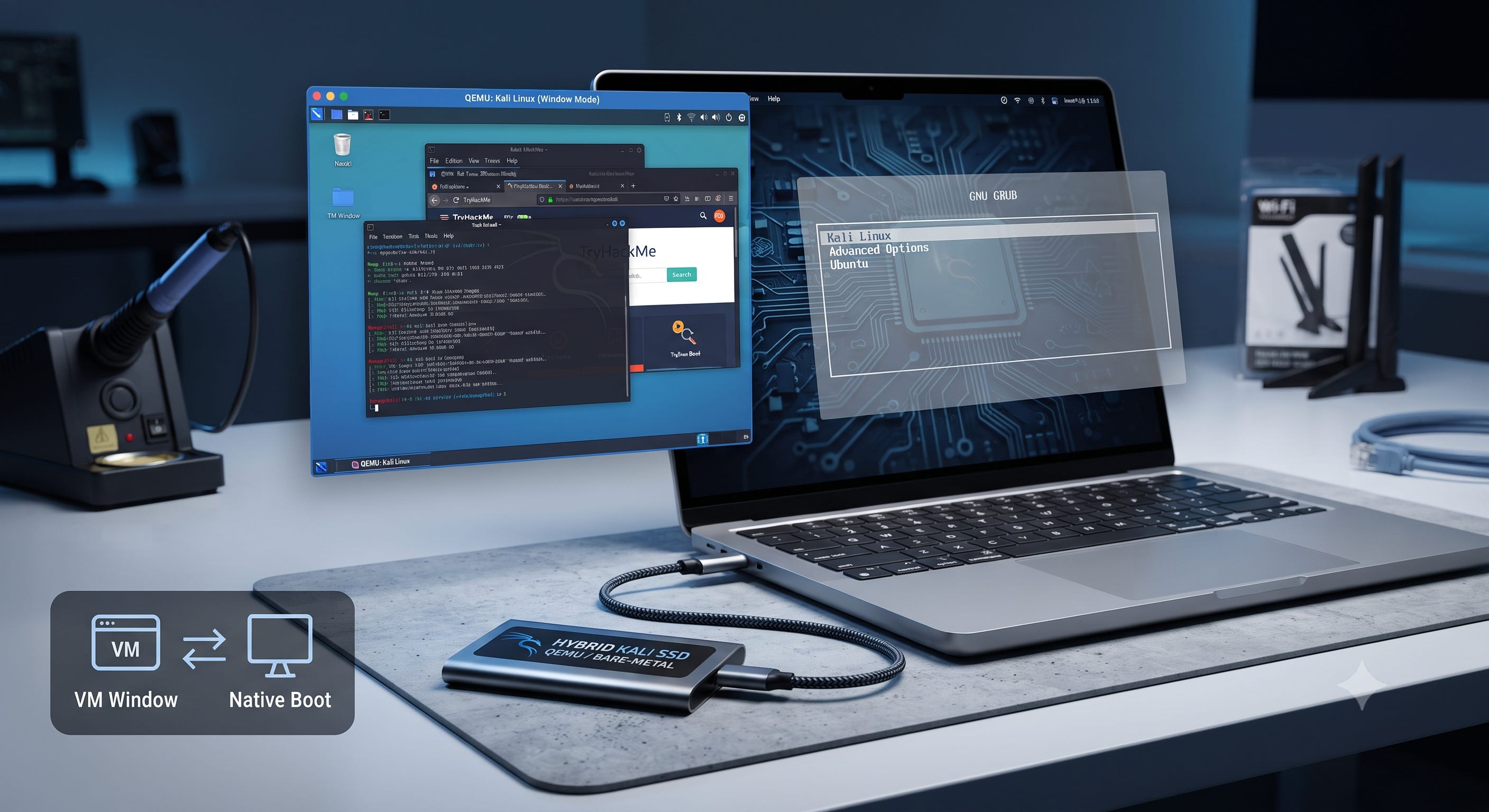
When setting up a dedicated penetration testing environment, standard workflows usually require sacrificing an extra flash drive, messing with slow live USBs, or dealing with partition conflicts. Using QEMU/KVM with raw disk passthrough directly from a running Linux host (such as Ubuntu) offers a faster, cleaner alternative.
This guide walks through how to install Kali Linux directly onto a portable external SSD using QEMU, how to run it either as a virtualized window alongside your host OS or natively via bare-metal boot, and why this hybrid approach provides ultimate flexibility.
Step 1: Install Required Virtualization Tools
First, ensure your host system has QEMU and modern UEFI firmware (OVMF) installed:
sudo apt update
sudo apt install qemu-system-x86 qemu-utils ovmf -y
Step 2: Identify and Unmount Your Portable SSD
Plug in your external portable SSD (e.g., a high-speed Samsung T9) and locate its device node using lsblk:
lsblk
Locate your target external drive (for example, /dev/sda). Ensure you unmount any automatically mounted partitions on that drive so the host system releases control:
sudo umount /dev/sda1
⚠️ Warning: Double-check your disk identifier. Never target your internal system drive, such as
nvme0n1, or you will overwrite your primary operating system.
Step 3: Run the QEMU Installer with Raw Disk Passthrough
Launch the Kali Linux installer ISO inside QEMU, passing your physical external SSD directly as a raw disk (-drive file=/dev/sda,...) and utilizing modern 4MB UEFI firmware:
sudo qemu-system-x86_64 \
  -enable-kvm \
  -m 4096 \
  -smp 4 \
  -cpu host \
  -drive if=pflash,format=raw,readonly=on,file=/usr/share/OVMF/OVMF_CODE_4M.fd \
  -drive if=pflash,format=raw,file=/usr/share/OVMF/OVMF_VARS_4M.fd \
  -cdrom ~/Downloads/kali-linux-2026.2-installer-amd64.iso \
  -drive file=/dev/sda,format=raw,media=disk
ℹ️ Note: Replace
-cdromargument to your GNU/Linux ISO file path.
Step 4: Complete the Installation Wizard
- Select Graphical Install from the Kali boot menu.
- Proceed through language, localization, and network configurations.
- When prompted about UEFI compatibility modes, select Force UEFI installation? Yes to keep the bootloader cleanly isolated on the external drive.
- For partitioning, choose Guided - use entire disk and explicitly select your portable SSD (e.g., the target ~1.0 TB drive).
- Choose All files in one partition, write changes to disk, and finish the software selection (keeping Xfce and the default recommended tools).
Step 5: The Hybrid Execution Model: Window vs. Bare-Metal
Because the installation was written directly to the physical sectors of the portable SSD via raw passthrough, your Kali system is completely self-contained. You can now run it in two distinct ways—and any changes, packages, or files created in one method automatically persist in the other.
Option A: Running Inside a Window on Ubuntu (QEMU/KVM)
If you want to spin up Kali quickly without restarting your computer—ideal for writing scripts, studying, or running standard utilities—you can boot the installed SSD directly as an application window inside Ubuntu:
sudo qemu-system-x86_64 \
  -enable-kvm \
  -m 4096 \
  -smp 4 \
  -cpu host \
  -drive if=pflash,format=raw,readonly=on,file=/usr/share/OVMF/OVMF_CODE_4M.fd \
  -drive if=pflash,format=raw,file=/usr/share/OVMF/OVMF_VARS_4M.fd \
  -drive file=/dev/sda,format=raw,media=disk
ℹ️ Note: Same command as before, but now without the
-cdromparameter.
- Pros: Instant switching, keeps your main workflow open, near-native CPU/RAM performance.
- Cons: Network card access is abstracted through the host. Advanced wireless security tasks like packet injection or monitor mode will not work here.
Option B: Booting Natively via BIOS/UEFI (Bare-Metal)
When you need to perform actual hardware-level security auditing, wireless network testing, or full-scale penetration testing:
- Shut down your computer completely.
- Ensure your Portable SSD is plugged into a high-speed port.
- Power on the laptop and immediately tap your system’s boot menu key (e.g., Esc or F12 on ASUS Vivobooks).
- Select your Portable SSD from the UEFI boot device list.
- Kali boots directly on the bare metal.
- Pros: Absolute, direct hardware control over your Wi-Fi controllers, USB buses, and GPU, yielding maximum performance and full penetration testing capabilities.
- Cons: Requires a full system reboot.
Summary
That is all it takes. With a single portable SSD, QEMU raw disk passthrough, and a bit of UEFI configuration, you now have a high-performance penetration testing environment that adapts to your workflow—running as a fast virtual window when you’re on the move, or booting straight to bare metal when you need full hardware access. Happy hacking (ethically, of course)!